Saturday, 9 October 2021

Power Automate: Proper Case String Workaroud

There is Proper functions in Power Apps to converts any first letter of a word to Uppercase.

But there is no Proper case function in Power Automate yet. 

Reference to a blog post written by Paul Murana to achieve the same result.


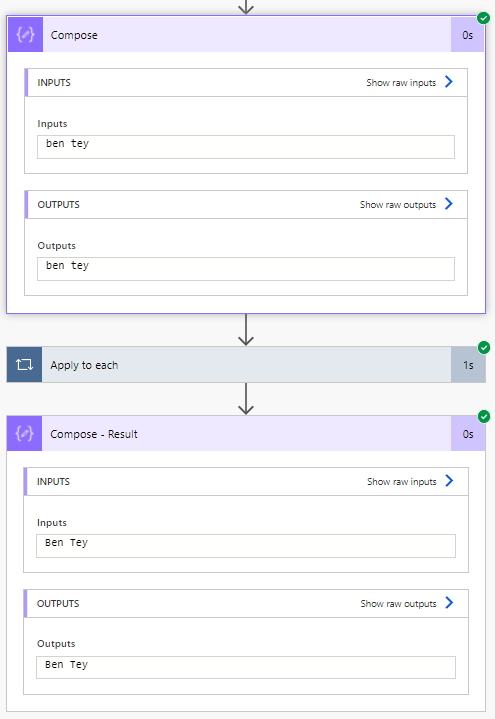
Below is the Input.


and here is the Output.


Follow the steps below:

  1. Create Data Operation - Compose to input the string.


  2. Create Control - Apply to each and add Data Operation - Compose inside.


  3. In Apply for Each, using referencing function to call Compose output. Enter Expression below:

    split(outputs('Compose'), ' ')


  4. In Compose - Proper, enter Expression into Inputs as below:

    if(equals(length(item()), 1), toupper(item()), concat(first(toupper(item())), toLower(substring(item(), 1, sub(length(item()), 1)))))


  5. Create Data Operation - Compose for Result.


  6. In Compose - Result, enter Expression into Inputs as below:

    join(outputs('Compose_-_Proper'), ' ')

    You have Proper Case function in Power Automate now.

Power Automate: Return value from Execute a SQL Query (V2)

Working on Power Automate aka Flow to retrieve result from Execute a SQL query (V2).

Wondering where is Dynamic Content for Execute a SQL query (V2) ?


Execute a SQL query (V2) response:


Add Compose action underneath and go to expressions and paste this in.

    body('Execute_a_SQL_query_(V2)')?['resultsets']['Table1'][0]['Approved']


It just work like a charm !


SharePoint Online: How to Restrict Download for Document library


For IRM protected document library, you will see this error while uploading protected or digitally signed PDF files. Something that working fine for Sharepoint 2010 but NOT for SharePoint Online.

According to Microsoft article:

IRM protection cannot be applied to protected documents as SharePoint needs to open the documents on upload

This is most demanded features for SharePoint Online UserVoice suggestion. 
Unfortunately, This UserVoice instance is no longer available anymore. While waiting for Microsoft to allow upload password protected / AIP protected / digitally signed PDF files in SharePoint IRM document library, workaround need to be in place.

Since we are not able to upload protected PDF into IRMed folder, only option is upload into non-IRM folder. 

To further protect the PDF, customer have asked on how to restrict download PDF from document library.


How to hide/restrict Download from the document library ?


Please follow the step below to remove Download option.
  1. Navigate to Site Permission > Advanced Permission Settings.
  2. Under Permission, select Create Group.


  3. Under Give Group Permission to this Site, tick View Only and click Create.


  4. Now you won't see Download option for the user assigned with View Only permission.

No Save/Download option in preview too.


SharePoint Online: View Only Permission Level is hidden

Excited to know that there are way to restrict downloading on SharePoint Online Document Library.

But where is the Read Only permission ?


Follow the steps below to Activate it.

Navigate to Site Settings > Site Collection Administration > Site Collection Features.
Look for SharePoint Server Enterprise Site Collection features
Click Activate.


Here you go. View Only permission is available now.


Follow this blog for more tips !


Wednesday, 22 September 2021

PowerApps Portal: How to Add Favicon

 To add favicon into PowerApps Portal.

  1. Prepare .ICO file before proceed further. you can use any online site to convert the file. I tried that but not sacrificed with outcome which larger file size from original.

    Tips: just rename .PNG to .ICON will do

  2. You can download it from website as well.

    Quick hack :
    • Enter the domain name like https://www.blogger.com/(must end with '/')
    • Add favicon.ico to the end
    • Press enter (this should be in the URL: https://www.blogger.com/favicon.ico)
    • Right click on the image and click "save image as"

  3. Go to Portal Management Model Driven App and go to Web Files and create new Web File Record. Upload favicon.ico into Notes and published.


  4. Now you will see your Favicon


IIS: Accidentally deleted IIS Binding Port 80

After added HTTPS port for IIS Website, usually I'll remove default port 80. 

Sometime i did regret that deleted it. Reason is when add back the port 80, can't proceed to enter OK with empty hostname.


Spend some time to google but no luck. Go back to the create new Port 80 and enter hostname with URL name. 

Still that not resolve the issue yet. No issue to access the portal from URL name. 

But by hostname and localhost not going to work. 

Go back to Binding setting and try to remove the Host name entered earlier.

Wow ! I'm able to remove the host name and click OK now. 

Keep the post for myself and it could save your time too.

Saturday, 4 September 2021

Orchestrator: Runbook Error "The term Get-SCSMObject is not recognized as the name of a cmlet..."

Working on a project to upgrade System Center Service Manager (SCSM) and Orchestrator (SCO) 2019 recently, seeing a familiar error message from Orchestrator Runbook again.

Runbook activity show Failed.


Error : The tern 'Get-SCSMObject' is not recognized as the name of a cmlet, function, script file, or operable program. Check the spelling of the name, or if a path was included, verify that the path is correct and try again.


Resolution: Copy SMLets Folder from System32 to SysWOW64 !

FROM

C:\Windows\System32\WindowsPowerShell\v1.0\Modules

TO

C:\Windows\SysWOW64\WindowsPowerShell\v1.0\Modules


Happily see the activity completed success now !